Getting started
Opening your store and telling people
The last checks before you open, how to open and close your store, and the QR poster and links for sharing it.
In the consoleOperate → Setup guide, then Account → Settings
A new store is closed to orders until you open it. Shoppers can browse and see an "Opening soon" banner, but they can't add to their basket or check out.
Finish the setup guide
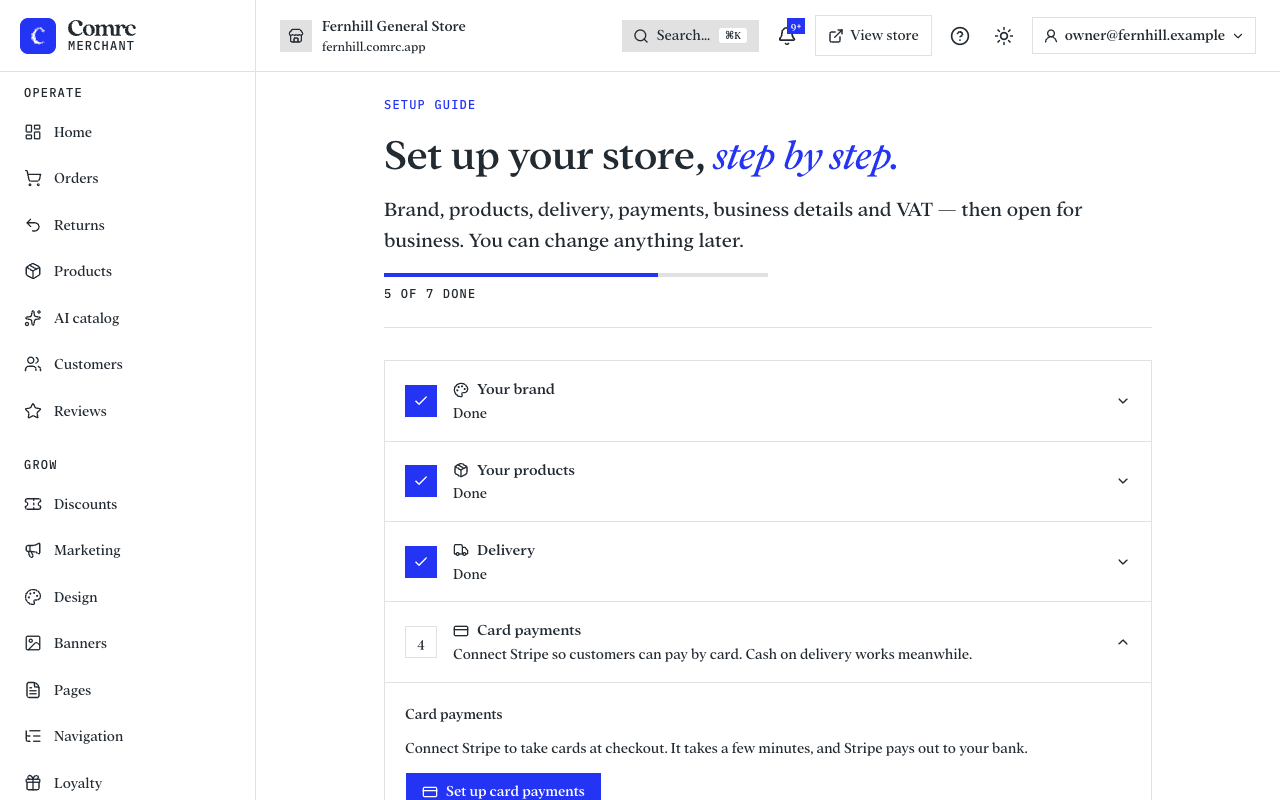
While your store is new, a Setup guide sits at the top of the sidebar. It lists the steps between a new store and a first order and ticks each one off as you do it: your brand, something to sell, delivery or collection, payments, your business details, VAT, and opening.
Before you open
- Your business details must be filled in. UK law requires your store to show your legal name, a postal address and an email, and your store can't open without them.
- Shoppers need a way to receive their order: at least one delivery zone, or collection.
- Shoppers need a way to pay: card payments through Stripe, cash on delivery or collection, or both.
- Place a test order yourself, to see the checkout, the confirmation email and the order arriving in the console.
Open, and close again
In Settings, the first section is Store open. Switch it on to start taking orders. Switch it off at any time and your store goes back to "Opening soon": people can still look around, and no orders come in.
Tell people
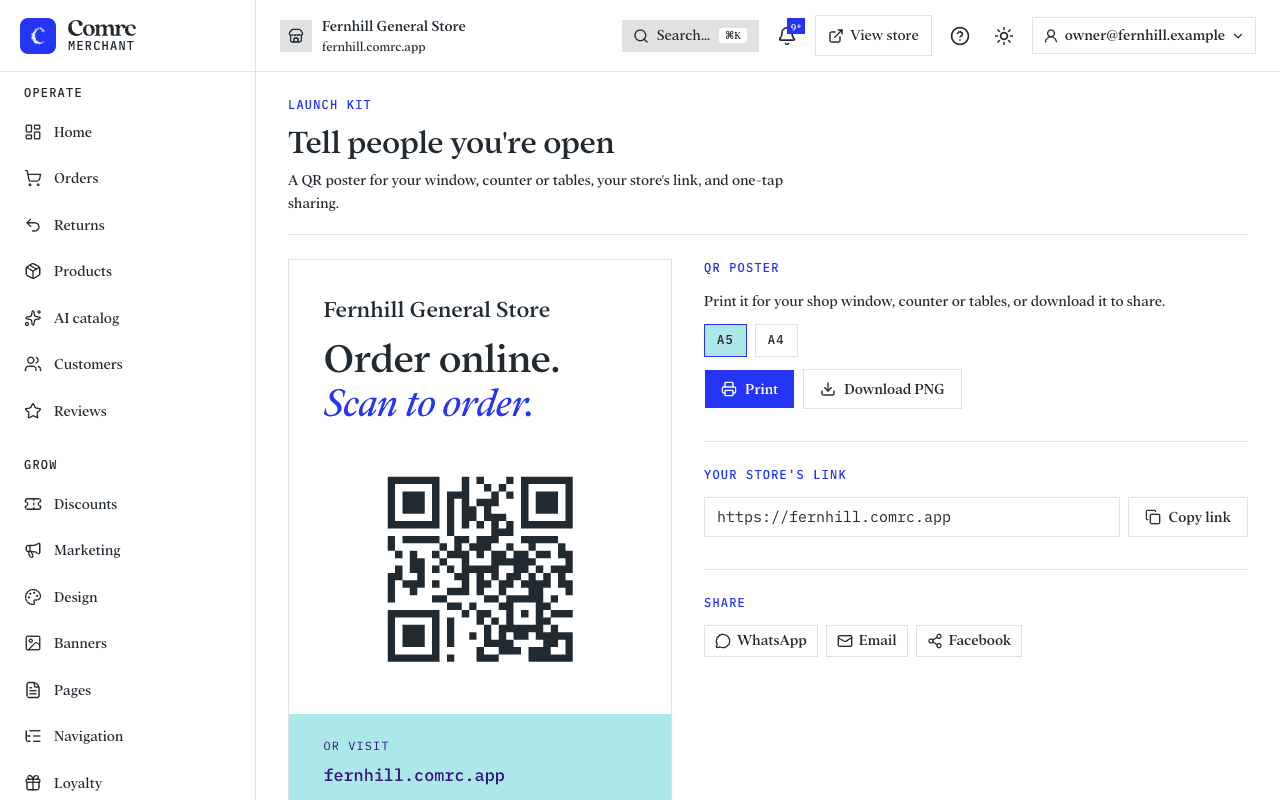
Once you are open, the launch kit gives you a QR poster to print for your window, counter or tables, your store's link to copy, and buttons to share it. You'll find it from Settings, under Store open.