Your storefront
Designing your store
Choose a template, set your colours and fonts, and build your home page from sections — with a live preview and nothing public until you publish.
In the consoleGrow → Design
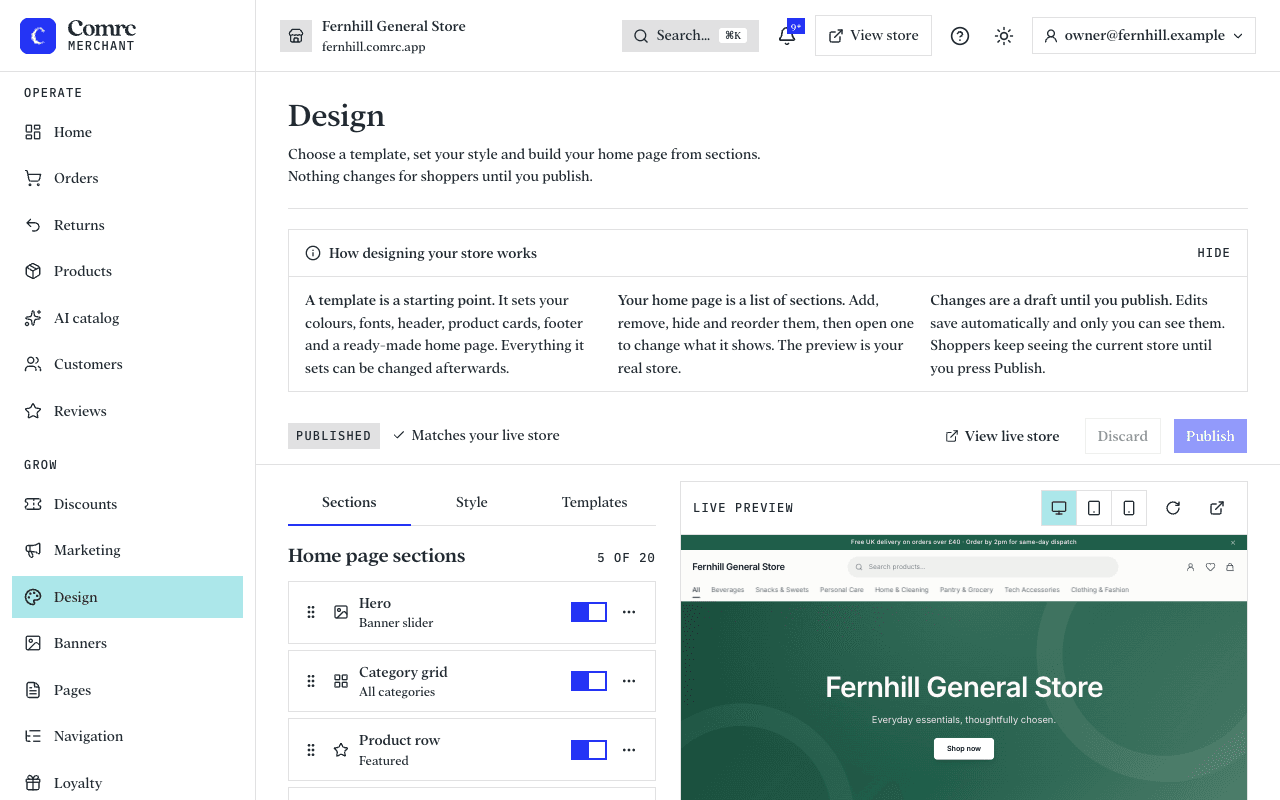
Design is where you decide how your store looks. The right-hand side is a preview of your real store, on a phone or a computer, and it updates as you change things.
Start with a template
A template sets your colours, fonts, header, product cards, footer and a ready-made home page in one go. Everything it sets can be changed afterwards. Applying a different template later replaces your draft's style and sections, so pick one before you spend time on the details.
Set your style
- Brand colour — used for buttons and accents.
- Fonts — one for body text and, if you like, a different one for headings.
- Corners — sharp, soft or round.
- Header, product card and footer layouts.
Your logo and the announcement bar above the header are set in Settings.
Build your home page
Your home page is a stack of sections. Add, remove, hide and reorder them, then open one to change what it shows.
- Hero — a large banner at the top: your banner slider, or one image with a headline and button.
- Categories — links to your categories as tiles or circles.
- Products — a short row: featured, newest, on sale, from one category, or hand-picked.
- All products — your full catalogue, with filters.
- Text, and image with text — for your story, a promotion or a notice.
- Reviews — recent customer reviews.
- Newsletter — an email sign-up box.
Drafts and publishing
Your edits save automatically as a draft that only you can see. Shoppers keep seeing the current store until you press Publish. It can take up to a minute for a published change to reach every shopper. Discard throws the draft away and goes back to what shoppers see now.