Products and stock
Keeping track of stock
How stock counts work, how to adjust them, and how to hold stock in more than one shop or warehouse.
In the consoleOperate → Products, and Account → Locations
Every variant of a product has its own stock count. An order takes stock off as soon as it is placed, and puts it back if the order is cancelled, so the number on screen is what you have left to sell.
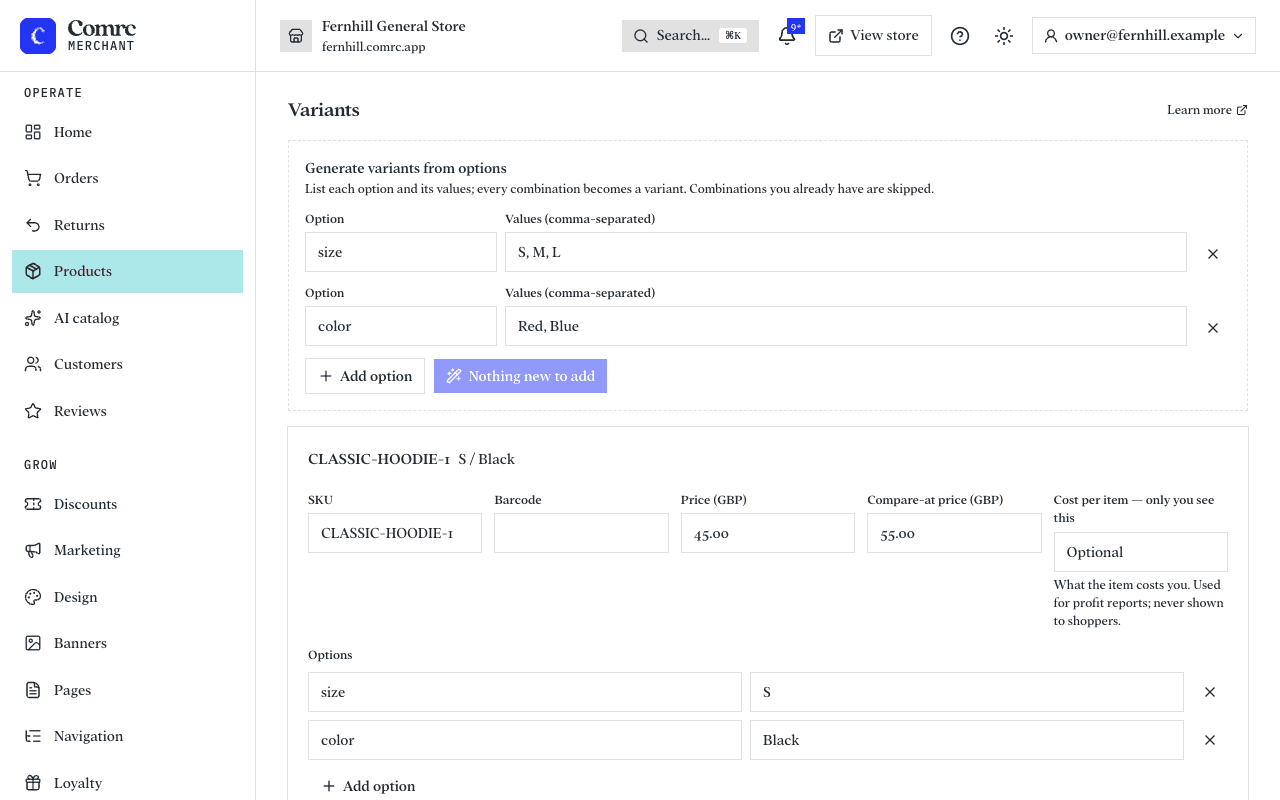
Adjust stock
Open a product and find the variant. Enter a positive number to add stock (a delivery arrived) or a negative number to remove it (something broke). Each change is kept in the variant's history, so you can see why a count moved.
When something sells out
- The storefront shows the variant as out of stock and shoppers can't buy it.
- Shoppers can ask to be emailed when it's back. Home and the product's own page show how many people are waiting, which tells you what to reorder first.
- When you add stock, everyone waiting is emailed once, automatically.
- Home lists products running low — variants with five or fewer left.
More than one location
If you keep stock in more than one place, add each shop, stockroom or warehouse under Locations. A variant's stock is then the total across locations, and you can see and move stock between them from the product's page.
- Delivery orders are sent from your default location. When it is short, the order ships from the next location that has everything.
- If you offer click and collect, shoppers choose which location to collect from, and see its address and opening notes.
- A location can be switched off. It keeps its stock but takes no orders.