Food and drink
Printing kitchen tickets
Connect a Star or Epson receipt printer so new orders print in the kitchen by themselves.
In the consoleFood & drink → Printers
A cloud printer checks in with Comrc every few seconds and prints new tickets by itself. No tablet or open browser tab is needed, so it keeps printing when the front-of-house laptop is shut.
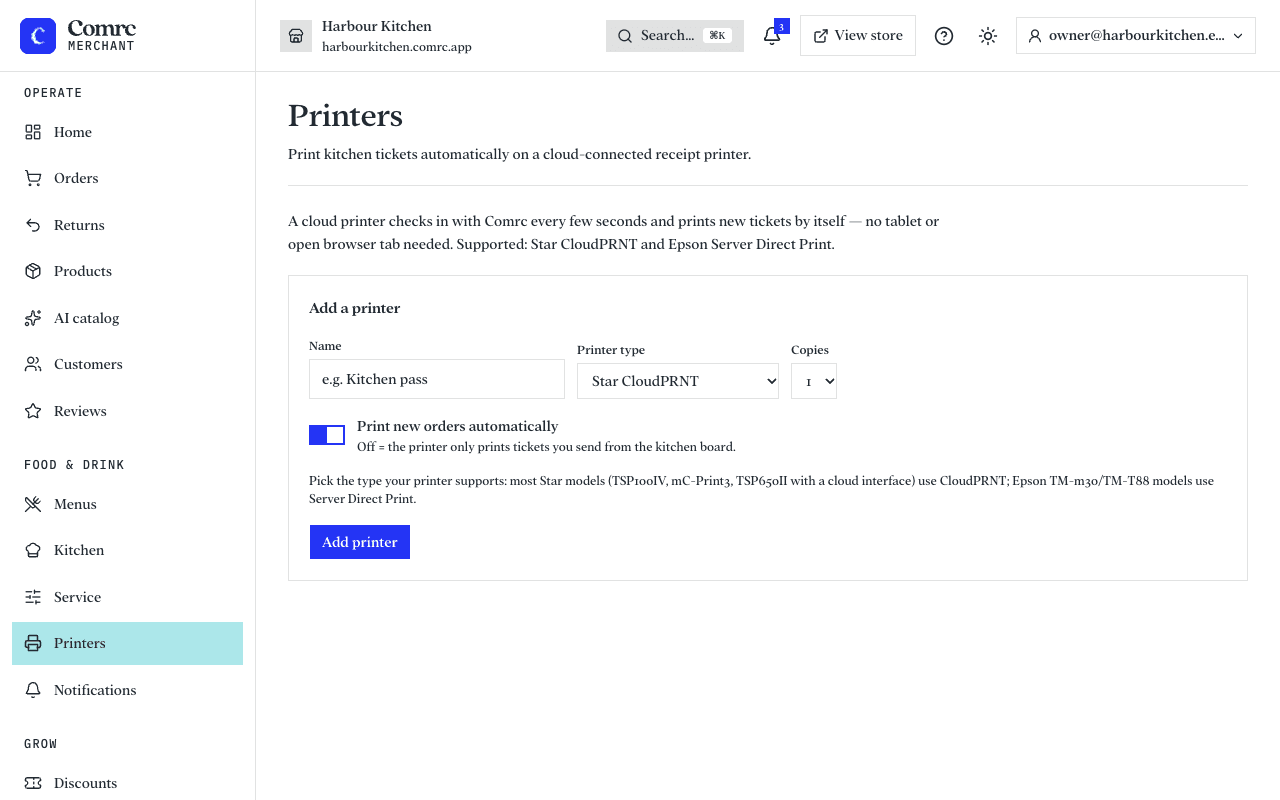
Printers that work
- Star printers with CloudPRNT — most current models, including the TSP100IV and mC-Print3.
- Epson printers with Server Direct Print — the TM-m30 and TM-T88 ranges.
Connect a printer
- Open Printers, add a printer and choose its type. The console gives you a printer address.
- Print the printer's self-test page to find its IP address, then open that address in a browser on the same network.
- In the printer's settings, switch on CloudPRNT (Star) or Server Direct Print (Epson) and paste the printer address in as the server address.
- Set the checking interval to about 5 seconds, save, and restart the printer.
- Back in the console, wait for the printer to show Online, then press Test print.
What prints, and when
With automatic printing on, every new order prints as it arrives. With it off, the printer only prints tickets you send from the kitchen board.