Getting started
Finding your way around the console
What each part of the merchant console is for, and where to look for the thing you need.
In the consoleOperate → Home
The merchant console at my.comrc.app is where you run your store. It works on a phone, a tablet and a computer, so you can check an order from the shop floor or the sofa.
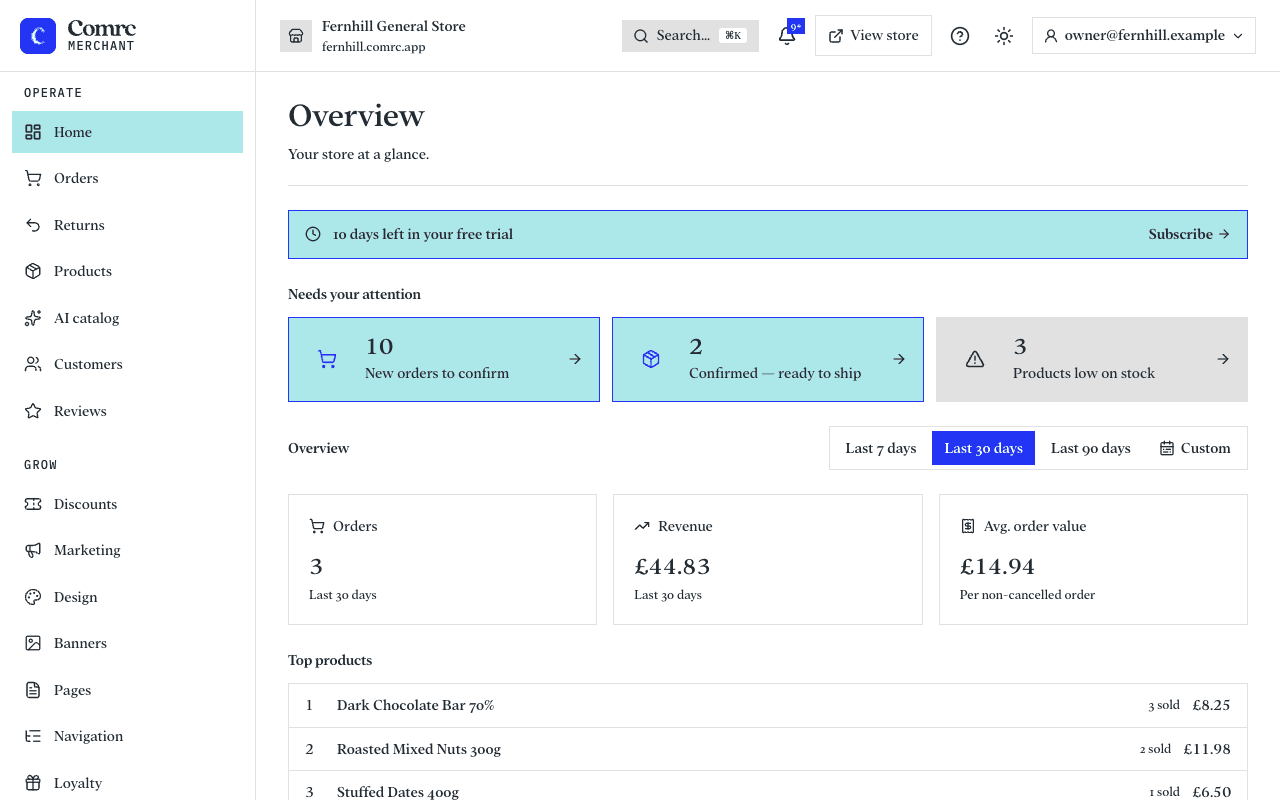
The sidebar
Everything is reached from the sidebar on the left. On a phone it sits behind the menu button at the top. It is split into groups:
- Operate — the day-to-day: Home, Orders, Returns, Products, AI catalog, Customers and Reviews.
- Food & drink — only for restaurants, cafés and takeaways: Menus, Kitchen, Service, Printers and Notifications.
- Grow — Discounts, Marketing, Design, Banners, Pages, Navigation, Loyalty and Reports. Shops also get Product feeds and Gift cards.
- Account — Payments, Shipping, Couriers, Billing, Team, Settings and Custom domain. Shops also get Click & collect and Locations.
You only see the sections your role allows. If something described in this guide is missing from your sidebar, ask the store's owner to give you access.
Home
Home shows what needs you today: new orders to confirm, confirmed orders ready to send, and products running low. Below that are your orders, revenue and average order value for the period you choose, your best sellers, and what shoppers are waiting for.
The top bar
- Your store's name and web address, so you always know which store you are in.
- Search — press it (or Ctrl/⌘ + K) and type to jump to any section.
- The bell — new orders and other alerts.
- View store — opens your live storefront in a new tab.
- The sun or moon — switch between a light and a dark console, or follow your device.
- Your account — your email, a link to this help centre, and sign out.