Customers and marketing
Google Analytics, Meta Pixel and cookie consent
Connect your analytics and advertising tags, and how the cookie banner on your store works.
In the consoleAccount → Settings → Tracking
You can connect Google Analytics to see how shoppers use your store, and a Meta Pixel to measure your Facebook and Instagram adverts. Both are optional.
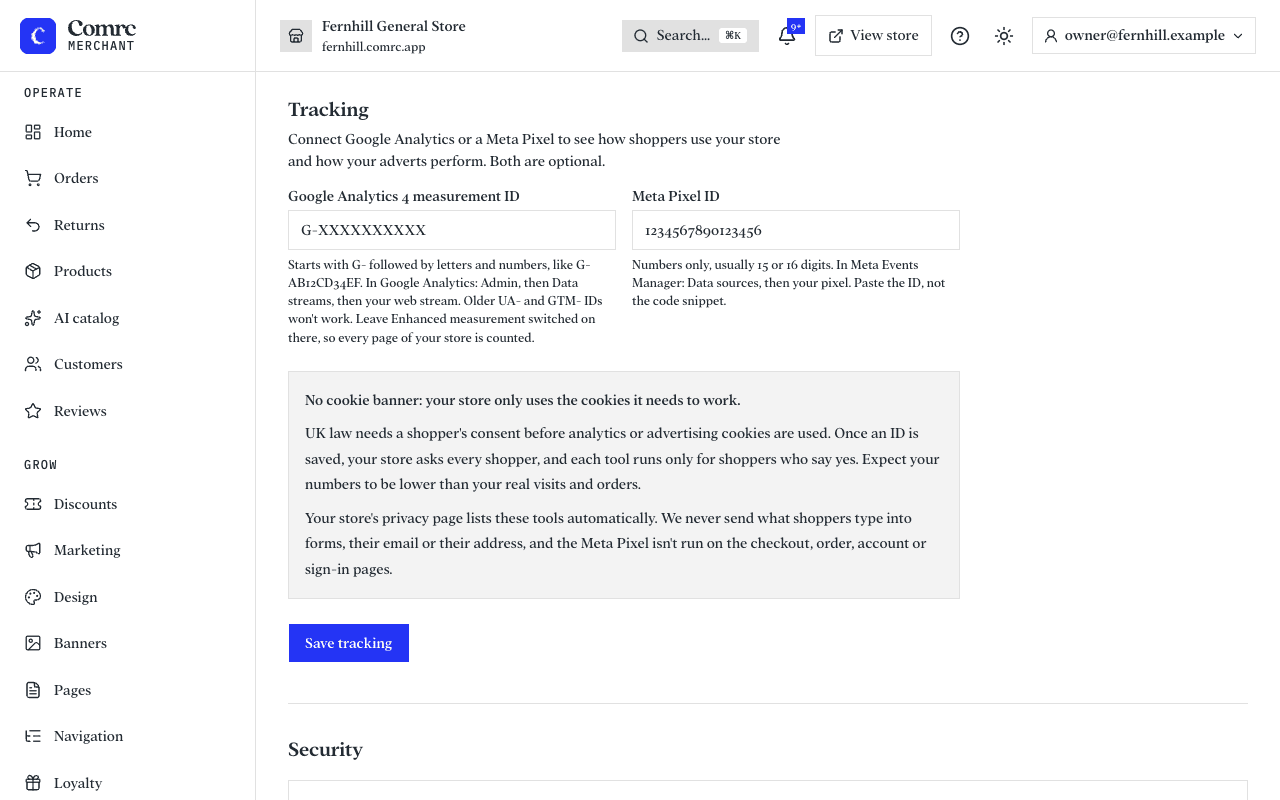
Connect them
- Google Analytics — paste your measurement ID. It starts with G-, like G-AB12CD34EF. In Google Analytics you'll find it under Admin, then Data streams, then your web stream. Older UA- and GTM- IDs won't work.
- Meta Pixel — paste your Pixel ID, a number you'll find in Meta Events Manager.
Once connected, your store reports the standard shopping events — a product viewed, added to basket, checkout started and a purchase, with its value.
The cookie banner
These tags set cookies, and UK law says shoppers must agree first. So as soon as you add either ID, your store shows a cookie banner.
- Nothing is loaded until the shopper accepts. If they decline, the tags stay off.
- Analytics and marketing are separate choices, and shoppers can change their mind from "Cookie settings" in your store's footer.
- A browser set to send a "do not sell or share" signal is treated as a decline.
- With no IDs set, there are no such cookies and no banner.