Your account and team
Keeping your account secure
Add a second step at sign-in, reset a forgotten password, and what to do if you think someone else has access.
In the consoleAccount → Settings → Security
Your console holds your customers' details and your takings. A second step at sign-in means a stolen password isn't enough to get in.
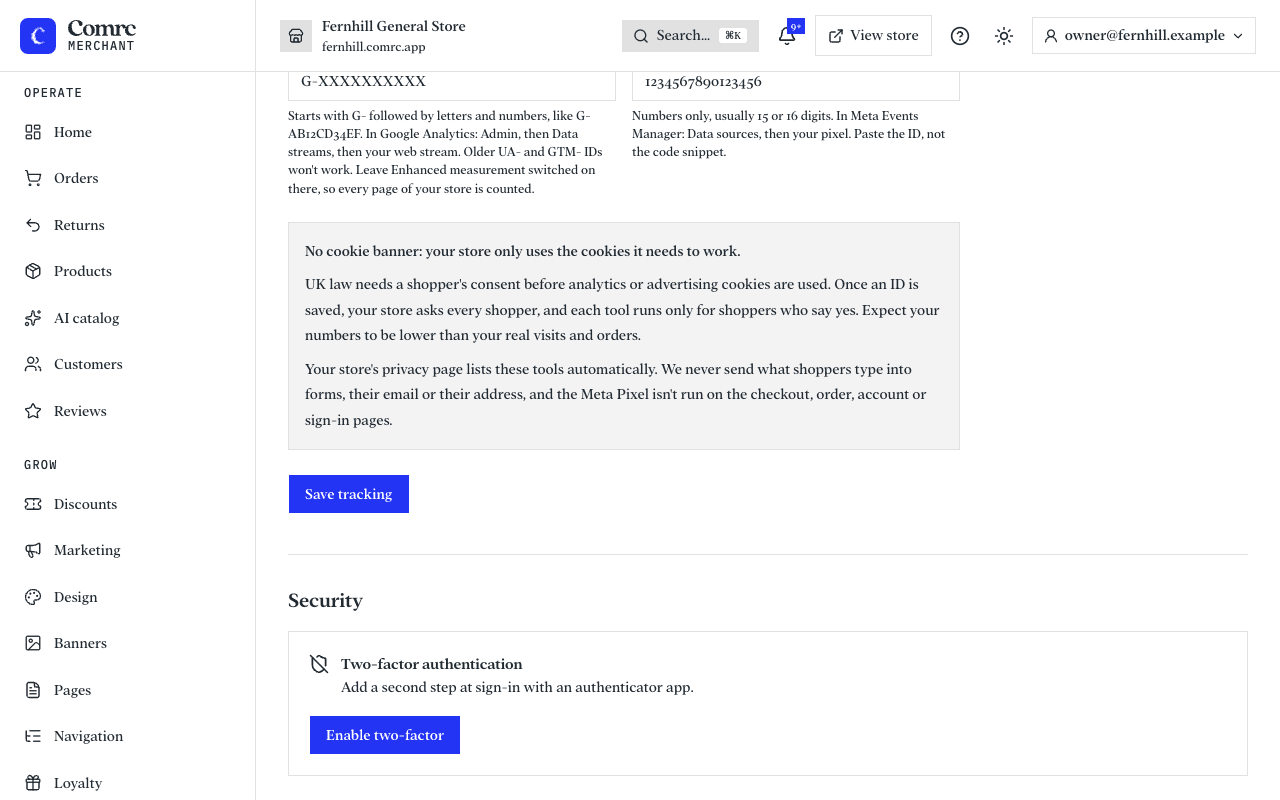
Turn on two-step sign-in
- Install an authenticator app on your phone, such as Google Authenticator, Microsoft Authenticator or 1Password.
- In Settings, under Security, start the setup and add the account to your app with the setup key shown.
- Enter the six-digit code from the app to confirm.
- Save the recovery codes somewhere safe. Each can be used once if you lose your phone.
From then on, signing in asks for your password and a code from the app. Each teammate sets this up for their own sign-in.
Forgotten password
On the sign-in page choose Forgot password and enter your email. You'll get a link to choose a new one.
If you think someone has access
- Change your password straight away.
- Turn on two-step sign-in if it isn't on.
- Check Team for anyone who shouldn't be there, and remove them.
- Email support@comrc.app and we'll help you check what happened.